

Credentials & Sub-Users
Create up to 20 credentials per Residential package, each with its own login, quota cap, sessions, and blocked destinations.
Each Residential package can hold up to 20 credentials (effectively sub-users), and each one has its own username and password that authenticates against the same package. ISP and Datacenter services skip this: they connect with the fixed connection details shown on the service page instead.
Why use more than one credential
- Per-tool or per-team isolation: give each script, teammate, or client its own login instead of sharing one password.
- Per-credential quota caps: cap an individual credential's bandwidth, anywhere from a few megabytes up to effectively unlimited, so one tool can't burn through the whole package's quota.
- Separate usage attribution: track how much bandwidth each credential uses on its own, so you know exactly which tool or team is spending it.
Managing a credential
Open Services, select your Residential service, and go to the Sub-users tab. Opening a credential brings up a management dialog with four tabs.
Settings
Set a label for the credential (for your own reference) and, optionally, a bandwidth quota cap. The quota field has a unit select (KB, MB, or GB, defaulting to MB); whichever unit you enter, the cap is stored in whole megabytes (values are rounded up to the next MB). Units are decimal SI, so 1 GB equals 1000 MB.
IP auth
Configure passwordless authentication for this specific credential. Connections from a whitelisted source IP skip the username and password entirely. See IP Authentication for how bindings and their defaults work, and the security tradeoffs to weigh first.
Sessions
Lists this credential's active sticky sessions. Rotate a single session for a fresh IP, rotate all of them at once, or drop a session outright.
Blocked destinations
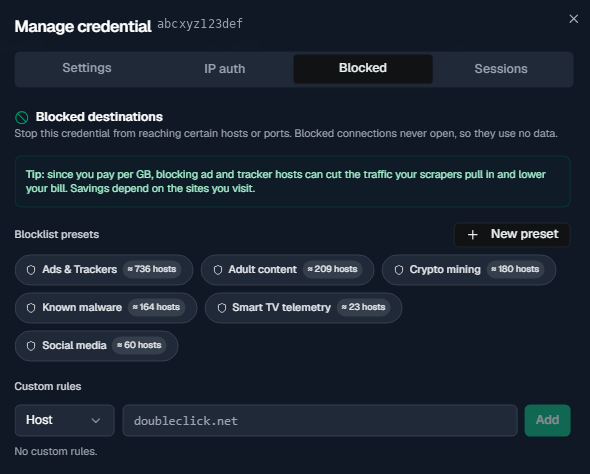
Stop this credential's traffic from reaching specific hosts or ports. Choose from built-in presets or add custom rules, useful for guaranteeing a given tool can never hit certain domains. See Blocked Destinations.
Resetting or rotating a password
Open the credential and use the reset/rotate password action to generate a new password on the spot.
The old password keeps working briefly
The new password takes effect immediately, but the old one can still authenticate for up to about 30 seconds while the change propagates. Update every tool, script, or config that uses this credential before you rotate it, and don't rely on the old password being rejected instantly.
The same 30-second window applies to setting a credential inactive, deleting it, and removing an IP-auth binding.
Usage Statistics
What Proxio's Statistics tab shows, covering today's usage, the 7-day trend, remaining quota, and connection success rate.
Blocked Destinations
Stop a credential from reaching specific hosts or ports using blocklist presets and custom host/port rules, including what a blocked request looks like to your client.