

Dashboard Tour
A guided walkthrough of dashboard.proxio.net, covering Home, Services, Orders, Wallet, Support tickets, and Settings.
Everything you buy and manage lives at dashboard.proxio.net: your services and their credentials, your wallet and orders, usage statistics, and support. This tour walks through each area so you know where to click.
Home
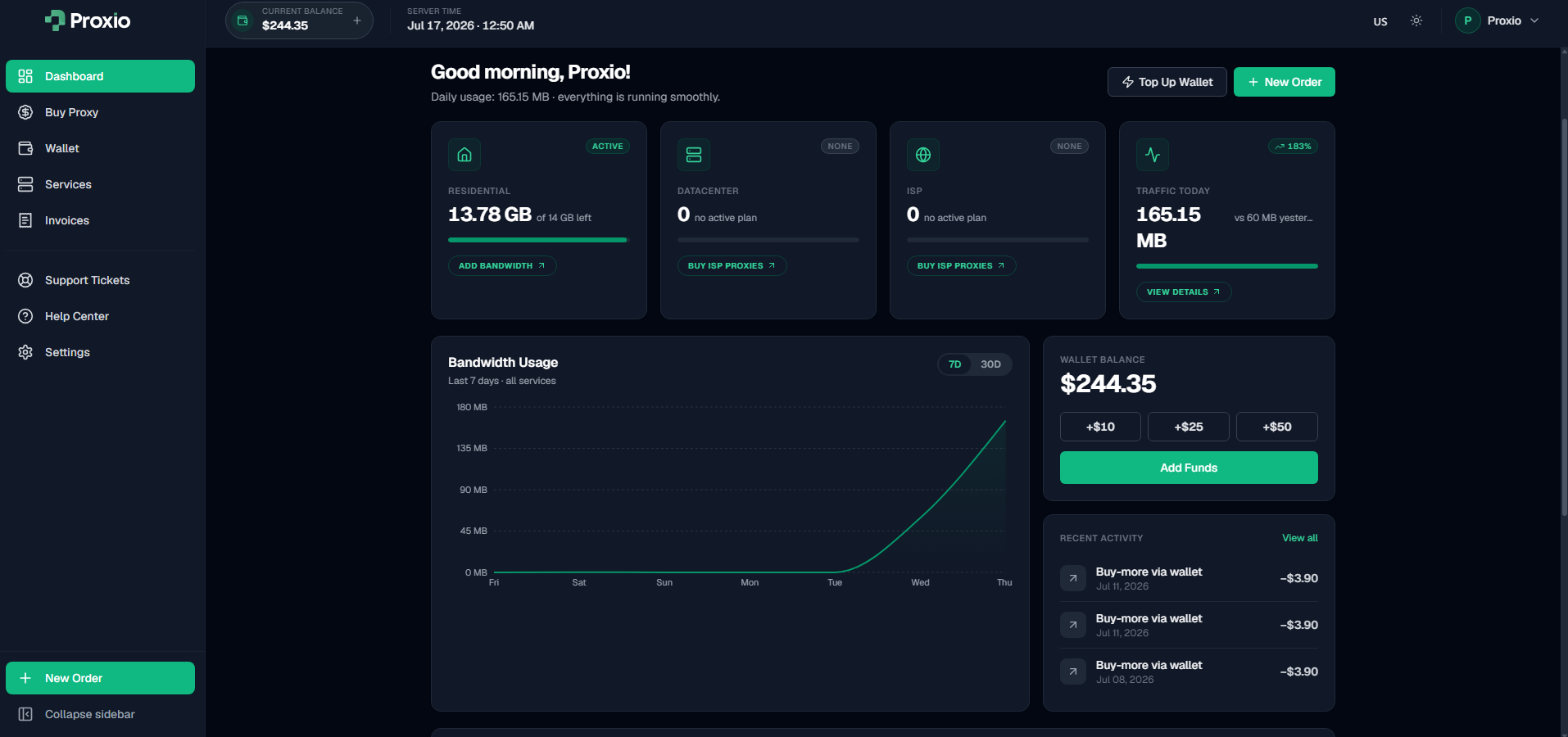
When you sign in, the Home page opens with three status cards: Bandwidth Usage, Wallet Balance, and Recent Activity.
On your first visit, a three-step purchase wizard walks you through your first order. It includes a Proxy Advisor questionnaire that recommends a setup based on your use case.
Services
Services lists everything you own. Click a service to open its detail view, where the tabs depend on the product:
- Residential services have Setup (connection details, gateway, and code examples), Statistics (usage over time), Sub-users (credentials, quota caps, and access controls), and Orders (this service's purchases).
- ISP and Datacenter services show their connection details and code examples instead, with each proxy's own host, port, username, and password.
Orders
Orders is your purchase history. Filter by status or category to find a specific order, and re-pay any order still marked pending.
Wallet
Wallet shows your current balance, a top-up panel with quick amounts and a custom field, and your full transaction history. Full details, including payment methods and deposit bonuses, are in Wallet & Top-Up.
Support tickets
Open a Support ticket for help. Choose a category (General, Billing, Technical, Proxy Issue, Account, or Other) and a priority (Low, Normal, High, or Urgent). Tickets move from Open through Awaiting Staff or Awaiting User, then to Resolved or Closed.
Settings
Settings is where you manage your profile and password, interface language (English, Russian, German, and Simplified Chinese), and appearance (light or dark). You can also connect Google, GitHub, and Discord accounts, and link your Telegram account. A Developer card links to API keys and Webhooks, for managing access to the REST API.
Where next
Quickstart: Your First Request
Sign up, buy a residential package, grab your credentials, and send a verified proxy request in cURL, Python, Node.js, or PHP, all in under two minutes.
Choosing Your Setup
A decision guide for residential proxies that helps you pick a rotation type, a geo scope, and a protocol, or start from a built-in preset or the dashboard's Proxy Advisor.